
In the previous articles, you’ve learned how to create many interactive question types in ActivePresenter 10 such as True/False, Multiple Choice, Multiple Response and Essay questions. Now, turn to the next one – Fill in Text Entry questions.
A Fill in Text Entry question is useful when you want learners to provide a short response on their own instead of choosing from predefined answer options. It contains a single-line text entry where learners can type a word, phrase, or other short answer.
In ActivePresenter 10.6, this question type keeps the same simple workflow while adding more flexibility for text input. In particular, you can now add Placeholder Text to display a short hint inside the empty response field before learners start typing.

This tutorial walks you through 6 stages to create a Fill in Text Entry question in the current ActivePresenter 10 interface in this post.
- Insert a Fill in Text Entry Question
- Customize a Fill in Text Entry Question
- Set Correct Answer
- Set Score and Reporting
- Add Events – Actions
- Customize Feedback Layers
Firstly, download the latest version of ActivePresenter, and then get started.

Insert a Fill in Text Entry Question
To insert a Fill in Text Entry question, do either of the following:
- Open the Questions tab > Fill in Text Entry
 .
.
 .
.
- Open the Home tab > Interactions > Fill in Text Entry .
In ActivePresenter version 10.6, Fill in Text Entry provides two options:
- Text: Create a single-line response field for a word, phrase, or other text answer.
- Numeric: Create a single-line response field designed for numeric answers and numeric validation.
Select the option that matches the type of answer you want learners to enter.
Then, a new question slide appears as the below image:
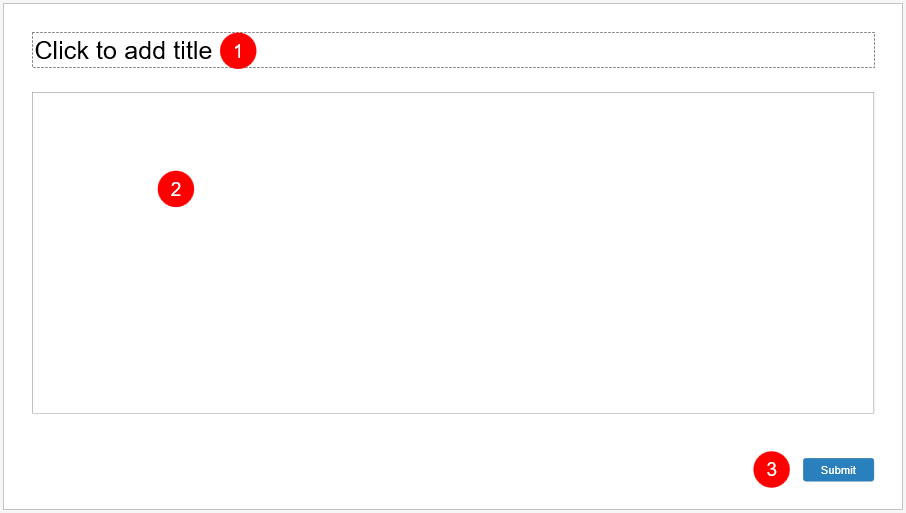
As you can see, a Fill in Text Entry question slide has three parts:
- (1) the top text box to add a question or a statement providing missing information;
- (2) the answer area with only one text entry (or the blank) which learners can type their answer in.
- (3) and the Submit button.
Customize a Fill in Text Entry Question
This question has only one text entry. So, you can neither remove nor add more. If you want to have more text entries, consider using Fill in Text Entries questions.
Here are some options that you can use to customize the question title, answer area, and entry field to match the design of your course:
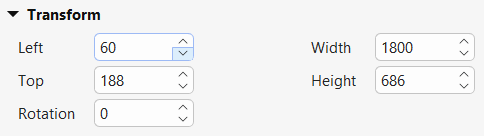
- Resize the question title (1) and answer area (2): Select them and drag their resizing handles. Alternatively, adjust the Width and Height values in the Properties pane > Size & Properties > Transform to change their size.
- Format the text entry: Select the text entry and access the Format tab to change its style the way you want. You can select a built-in style in the Quick Styles gallery. Alternatively, edit it using tools in the Style Tools section or Style & Effects tab of the Properties pane.

- Change the shape of the text entry: Click Change Shape on the Format tab to change to a rounded-corner rectangle if you want.
- Reset to the original style: After formatting the text entry, right-click it and select Reset Placeholder if you want to remove all changes you’ve made and reset it to the original style.
ActivePresenter 10.6 also supports Placeholder Text, which lets you display a short hint inside the empty field before learners start entering their response.
Set Correct Answers
How you define a correct answer depends on the selected Answer Type. ActivePresenter 10.6 supports both Text and Numeric answers for Fill in Text Entry questions.
Set Correct Answers for a Text Question
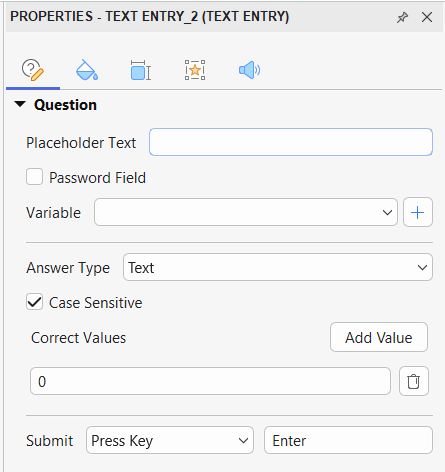
Select the entry field, then go to Properties > Question and set Answer Type to Text.
Under Correct Values, click Add Value and enter an accepted answer. You can add multiple values if more than one response should be considered correct. Click the Delete button to remove a value.
Select Case Sensitive if uppercase and lowercase letters should be evaluated differently.
Set Correct Answers for a Numeric Question
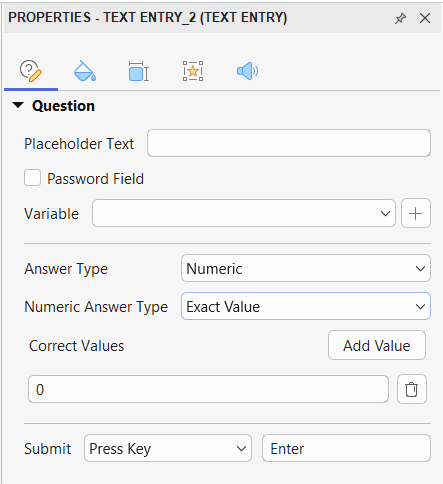
Select the entry field, then go to Properties > Question and set Answer Type to Numeric.
Next, choose a Numeric Answer Type:
- Exact Value
- Value Range
- Greater Than
- Less Than
Enter the required number or values under Correct Values, depending on the selected rule. Use Add Value when you want to accept additional numeric values where applicable.
Set Score and Reporting
To configure question-level scoring and reporting, select the answer area, and then navigate to the Properties pane > Question > Score & Reporting.
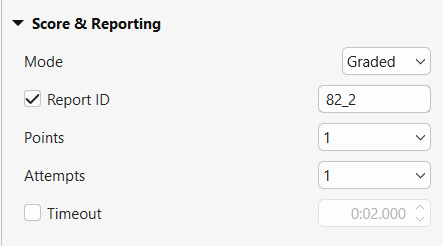
This section provides you with a lot of useful options to customize:
- Mode: Select the Graded mode if you want to measure learners’ performance. Otherwise, select the Survey mode if you want to collect learners’ feedback or information.
- Report ID: Track learners’ activities. You can change it to a meaningful ID for easier tracking.
- Points: Set scores for correct answers.
- Attempts: Set the maximum attempts that learners can interact with the question.
- Timeout: Set a time limit that only allows learners to respond to the question in the given amount of time.
For more details about these properties, see How to Create Interactive Quizzes.
Add Events and Actions
ActivePresenter 10 offers default events and actions for Fill in Text Entry questions. Generally, this question type has four default events for the Graded mode (On Correct, On Incorrect, On Incomplete, and On Timeout) and three for the Survey mode (On Complete, On Incomplete, and On Timeout).
If you’ve selected the Graded mode, here is what you’ll see:
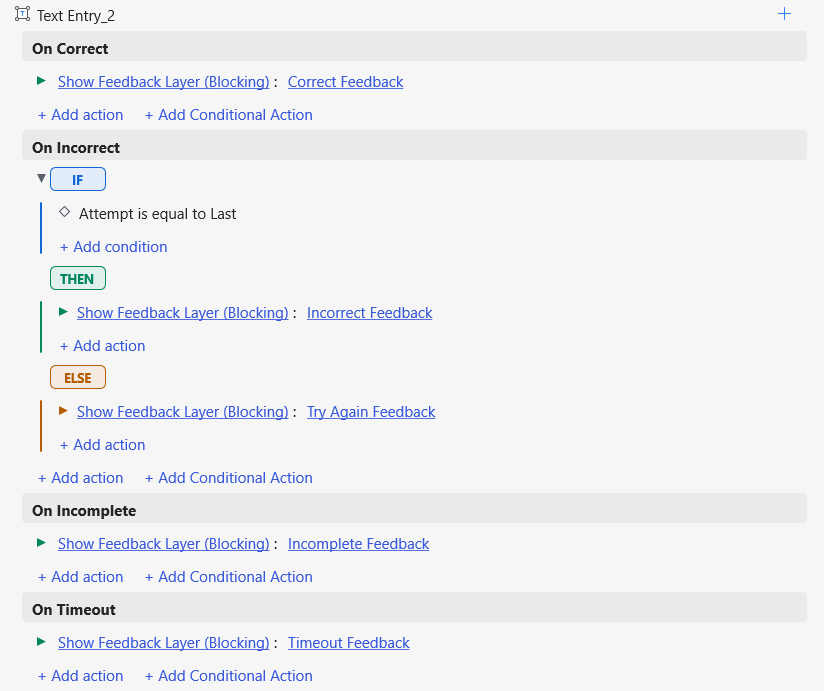
You can remove, change, or make events and actions more advanced as you wish. To do that, first, select the answer area. Then, access the Properties pane > Interactivity > Events – Actions.
Customize Feedback Layers
ActivePresenter 10 automatically adds default feedback layers for Fill in Text Entry questions. These default feedback layers can be Correct Feedback, Incorrect Feedback, Try Again Feedback, Incomplete Feedback, and Timeout Feedback (for the Graded mode) or Complete Feedback, Incomplete Feedback, and Timeout Feedback (for the Survey mode). Note that you can delete, change, or add more if necessary.
See Work with Feedback Layers for details.
So, you’ve just learned how to use Fill in Text Entry questions in ActivePresenter 10. Besides, don’t forget to visit our Tutorials page and YouTube channel for more tips and tricks using this app.
Final Thoughts
Fill in Text Entry questions in ActivePresenter 10.6 are more flexible than before. In addition to short text responses, you can now choose a Numeric option when learner input needs to be evaluated as a number, while Placeholder Text can provide clearer guidance before learners start entering their answers.
Together with flexible scoring, reporting, events, feedback, and other interactive question types, these improvements make ActivePresenter a more versatile environment for building assessments and complete eLearning experiences.
Ready to create more flexible interactive questions in ActivePresenter?
See more: