
A Fill in Text Entries question is useful when learners need to provide several short responses within the same question. Unlike a Fill in Text Entry question, which contains one response field, this question type contains multiple single-line text entries that can be configured separately.
In this tutorial, you will learn how to create this question through 6 stages:
- Insert a Fill in Text Entries Question
- Customize a Fill in Text Entries Question
- Set Correct Answers
- Set Score and Reporting
- Add Events – Actions
- Customize Feedback Layers
And before starting, make sure that you already have the latest version of ActivePresenter (an eLearning authoring tool) installed on your computer.
ActivePresenter 10.6 also improves the text-entry workflow with Placeholder Text and more flexible interaction logic, making it easier to guide learners and control how a question responds to their input.

Insert a Fill in Text Entries Question
There are several ways to insert a Fill in Text Entries question. Do one of the following ways to do that:
- Open the Questions tab > Fill in Text Entries
 .
. - Open the Home tab > Interactions > Fill in Text Entries .
 .
.
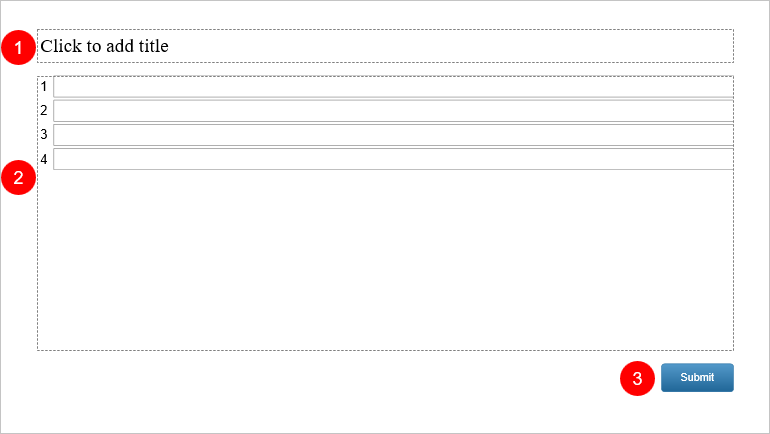
Then, a new question slide appears with three parts:
- (1) the top text box to add a question or a statement providing missing information;
- (2) the answer area with four single-line text entries by default, each paired with an answer label;
- (3) and the Submit button.
Customize a Fill in Text Entries Question
Here are some options that you can use to customize the question:
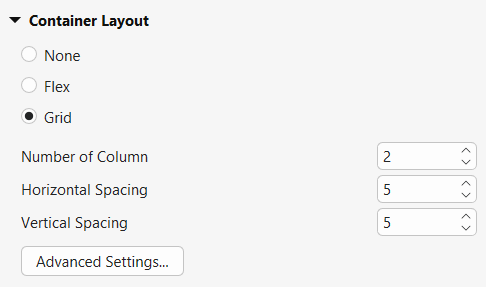
- Change the container layout: Access the Properties pane > Size & Properties > Container Layout > select the layout mode you want. In this section, the app offers you three options:
- None: This option allows you to resize and reposition answer options freely.
- Flex: This layout arranges answer options horizontally or vertically in a flex container.
- Grid: This option arranges answer options in a grid pattern.
After that, customize its properties if necessary.
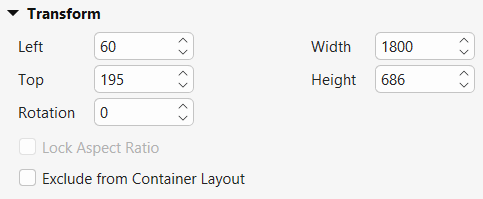
- Resize the question title (1) and the answer area (2): Drag the resizing handles on the Canvas, or select them > navigate to the Properties pane > Size & Properties > Transform > adjust the Width and Height values.
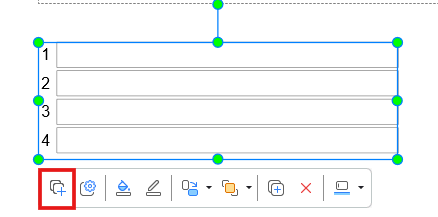
- Add more text entries: Select the answer area and click the plus button:
- Delete a text entry: Select a text entry and press DELETE on your keyboard, or right-click it > Delete.
- Rename the answer labels: Click an answer label and enter a new text if you want.
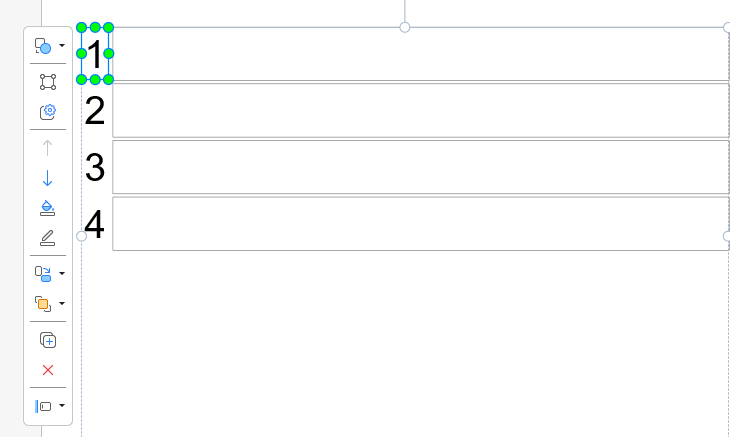
- Format the answer labels and text entries: Select the answer area, then open the Format tab > select a built-in style from the Quick Styles section, or edit them by yourself using tools in the Style Tools section or in the Style and Effects tab of the Properties pane.

- Change the shape of the answer labels and text entries: Select the answer area > Format tab > click Change Shape to change their shape to rounded corner rectangles.
Tip: You can set the customized Fill in Text Entries question as default to reuse later. By doing so, each time you insert a new Fill in Text Entries question, the customized question appears. To do that, right-click the answer area > Set as Default Fill in Text Entries Question.
Set Correct Answers
Because a Fill in Text Entries question contains multiple response fields, you need to set accepted answers for each text entry separately.
ActivePresenter 10.6 supports two Answer Types for each text entry: Text and Numeric.
Set Correct Answers for a Text Entry
Select a text entry, then go to Properties > Question and set Answer Type to Text.
Under Correct Values, click Add Value and enter an accepted answer. Repeat this step if more than one response should be considered correct for that text entry.
Select Case Sensitive if uppercase and lowercase letters should be evaluated differently.
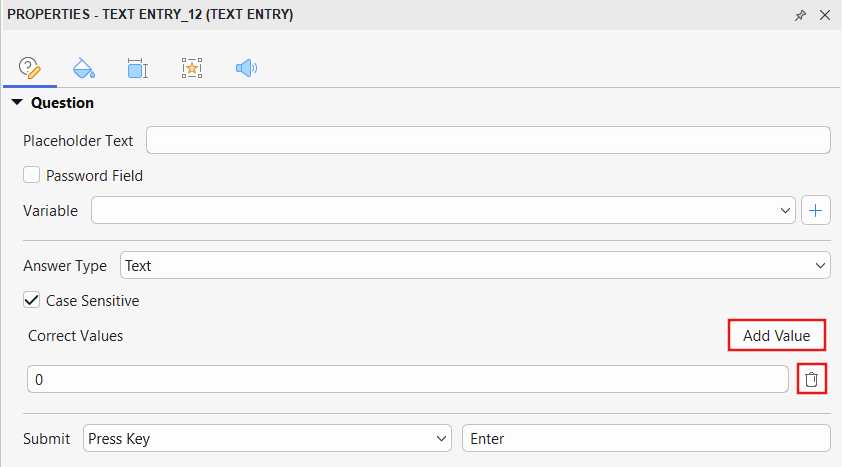
To remove a correct value, click the Delete button next to it.
Set Correct Answers for a Numeric Entry
Select a text entry, then go to Properties > Question and set Answer Type to Numeric.
Then, choose a Numeric Answer Type:
- Exact Value
- Value Range
- Greater Than
- Less Than
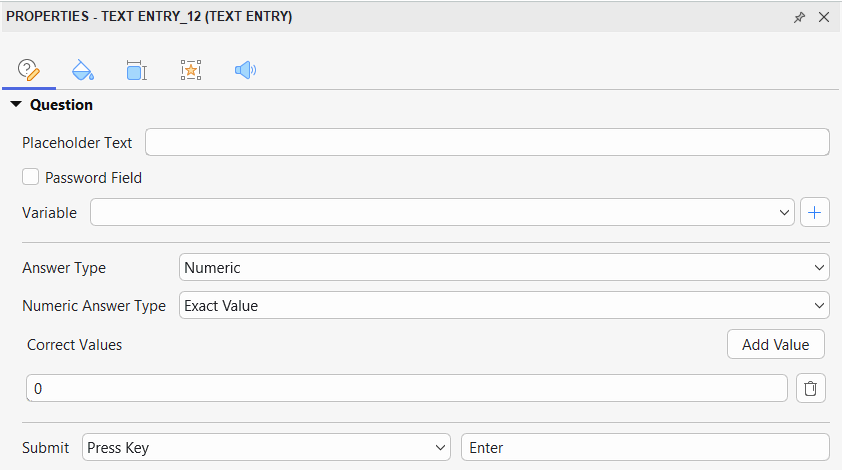
Enter the required number or values under Correct Values, depending on the selected rule.
Since each entry is configured separately, different text entries in the same question can use different answer settings as needed.
Set Score and Reporting
To set score and reporting for Fill in Text Entries questions, select the answer area, then navigate to the Properties pane > Question tab > Score & Reporting.
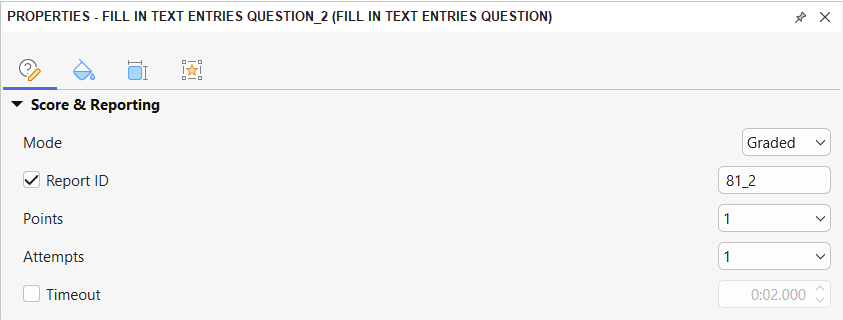
This section provides a lot of useful options, including:
- Mode: Select the Graded mode if you want to measure learners’ performance, or select the Survey mode if you want to collect learners’ feedback or information.
- Report ID: Track learners’ activities. You can set a meaningful report ID so that each question is easily recognizable in the report.
- Points: Set points for correct answers.
- Attempts: Set the maximum attempts that learners can interact with the question.
- Timeout: Set a time limit that only allows learners to respond to the question in the given amount of time.
Do not confuse the question-level settings above with the settings of an individual text entry.
When you select a single text entry, its response settings are mainly available under:
Properties > Question
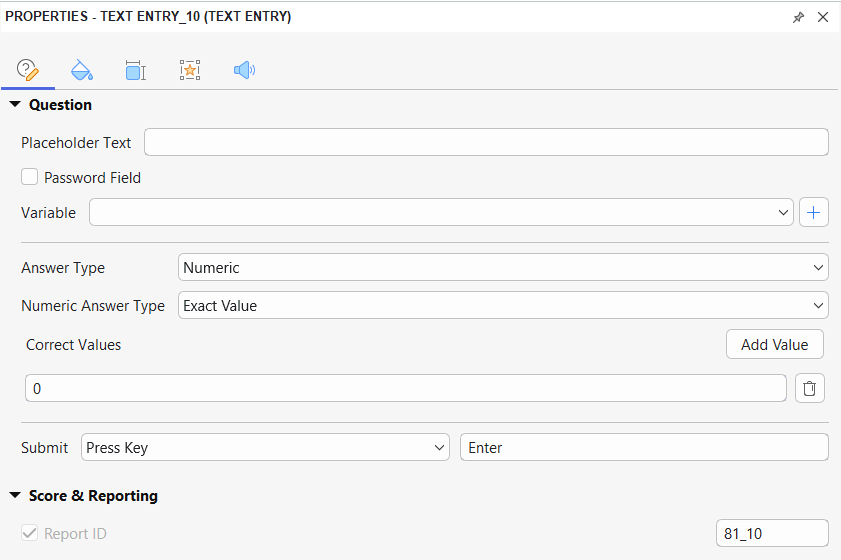
This section includes:
- Placeholder Text: Enter a short hint that appears while the entry is empty and disappears when learners start typing.
- Password Field: Hide the characters learners enter.
- Variable: Associate the entry with a variable.
- Answer Type: Choose Text or Numeric.
- Case Sensitive: Available when Answer Type is set to Text.
- Numeric Answer Type: Available when Answer Type is set to Numeric.
- Correct Values: Define the accepted answer or numeric condition.
- Submit: Configure how the response is submitted, such as Press Key with Enter.
When an individual text entry is selected, its own Score & Reporting section only exposes its Report ID in the current interface. Settings such as Mode, Points, Attempts, and Timeout belong to the whole question and should be configured by selecting the answer area instead.
For more details about these properties, see How to Create Interactive Quizzes.
Add Events and Actions
ActivePresenter 10 also offers default events and actions for Fill in Text Entries questions like other question types. Generally, this question has four default events for the Graded mode (On Correct, On Incorrect, On Incomplete, and On Timeout) and three for the Survey mode (On Complete, On Incomplete, and On Timeout).
If you’ve selected the Graded mode, here is what you’ll see:
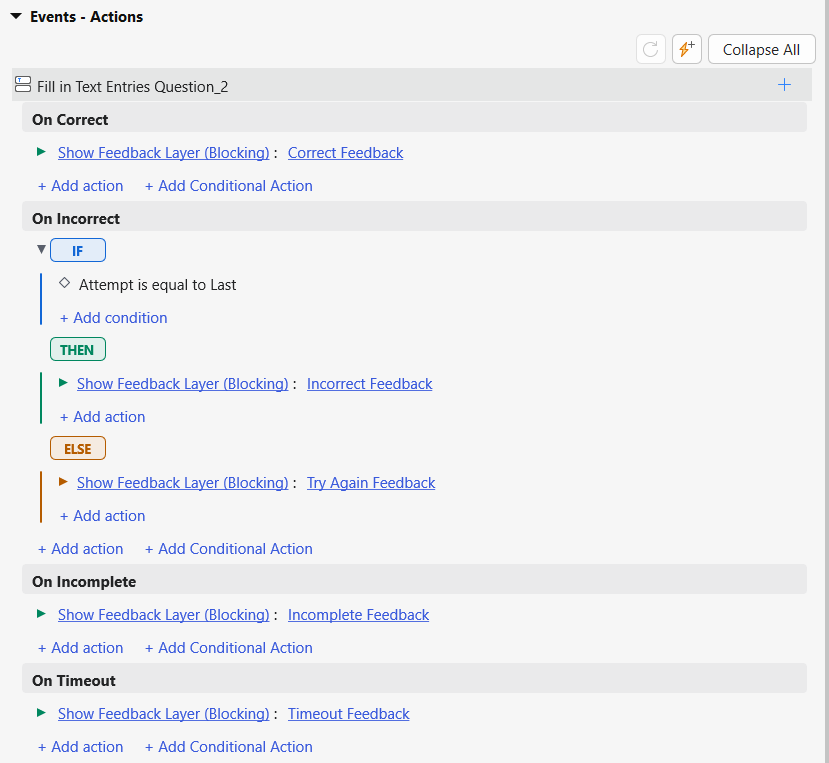
You can remove, edit, or add more events and actions as needed. Select the answer area, then open Events – Actions in the Properties pane.
ActivePresenter 10.6 also expands Conditional Actions with IF/THEN/ELSE logic, ordered actions, and grouped conditions. This gives you more control over how the question responds to different learner results.
Customize Feedback Layers
ActivePresenter 10 automatically adds default feedback layers for Fill in Text Entries questions. These default feedback layers can be Correct Feedback, Incorrect Feedback, Try Again Feedback, Incomplete Feedback, and Timeout Feedback (for the Graded mode) or Complete Feedback, Incomplete Feedback, and Timeout Feedback (for the Survey mode). Bear in mind that you can delete, change, or add more if necessary.
See Work with Feedback Layers for details.
Final Thoughts
Fill in Text Entries questions provide a flexible way to collect several learner responses within one assessment. In ActivePresenter 10.6, each entry can use Text or Numeric answer settings, while features such as Placeholder Text and expanded conditional actions give you more control over both learner input and question behavior.
Combined with ActivePresenter’s scoring, reporting, feedback, and other interactive question types, Fill in Text Entries questions can support a wider range of assessments directly within the same eLearning authoring environment.
Ready to create more flexible interactive assessments with ActivePresenter?
See more: