
Shapes are among the most flexible visual objects in ActivePresenter. You can use them to highlight information, create diagrams, design custom graphics, or build visual elements for interactive eLearning content.
In addition to shapes, ActivePresenter provides many other objects for presenting information and building interactive learning experiences. To explore more tools available in the software, check out our guide on creating eLearning content with ActivePresenter.
ActivePresenter 10.6 takes shape editing further with new tools such as Quick Edit, Merge Shapes, editable compound paths, Convert SVG to Shape, and Save as Picture. These additions give you more control over visual design without having to switch to a separate graphics application.
This article covers:
- Overview of shapes
- Add a shape
- Customize shape properties
- Use the Quick Edit Toolbar
- Change and Remove Shapes
- Merge Shapes
- Convert SVG Images to Editable Shapes
- Save Shapes as Pictures
- Draw Freeform Shapes
- Edit Freeform Shapes
Before going ahead, let’s download ActivePresenter by clicking the button below:

Overview of Shapes
ActivePresenter provides a wide range of ready-made shapes. A Text Caption is also a variant of a shape whose Fill and Line are invisible by default, so many shape-formatting techniques can be applied to text captions as well.
Ready-made shapes are organized into seven groups in the Shapes gallery:
- Basic Shapes
- Callouts
- Lines and Arrows
- Block Arrows
- Stars and Banners
- Flowchart
- Equation Shapes
Here is the current ActivePresenter shape gallery.
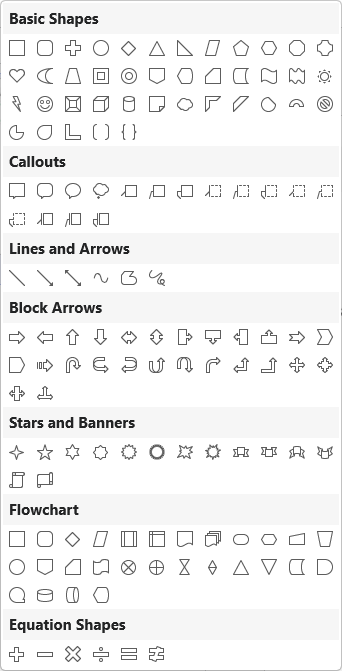
- Basic Shapes: This section contains common shapes such as the oval, triangle, cube, heart, etc.
- Callouts: This part offers speech and thought bubbles.
- Lines and Arrows: These are straight and curved lines, with or without arrowheads. Additionally, there are options for creating freeform paths and scribbles.
- Block Arrows: This section offers you a comprehensive assortment of arrow shapes.
- Stars and Banners: This part includes many different types of stars.
- Flowchart: Shapes used to illustrate processes and workflows.
- Equation Shapes: Symbols used for mathematical equations.
In general, the shapes’ initial color, line color, text color, and font are determined by the theme used for the current slide. However, you can customize these properties using available commands. We’ll discuss these techniques in the latter part of this tutorial.
Besides, the app lets you order, align, and group multiple shapes as you do with a normal object.
Add a Shape
Firstly, let’s say you want to insert an octagon shape. Here’s how:
Step 1: Open either the Insert tab or the Home tab > Shapes  , then choose a shape from the gallery.
Step 2: After selecting a shape, the pointer changes to a crosshair. Do either of the following:
Drag on the Canvas to draw the shape at the size you want.
Click anywhere on the Canvas to insert the shape.
Tip: You can insert a shape into multiple slides at the same time. See Inserting and Deleting Multiple Objects to learn the procedure.
Customize Shape Properties
Change Shape Appearances
After inserting a shape, it’s easy to change its appearance in ActivePresenter 10. Just follow the performances below:
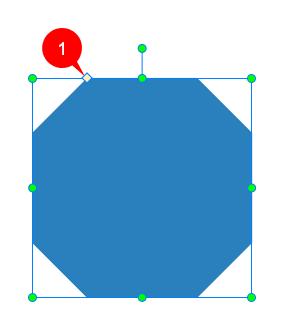
- If a shape contains an adjustable feature such as a pointer, drag its yellow diamond adjustment handle (1) to modify that part of the shape.
- Move the shape to a different spot on the Canvas by dragging and dropping it. Alternatively, access its Properties pane > Size & Properties tab > Transform section > adjust the Left and Top combo boxes’ value.
- Resize the shape by simply dragging its resizing handles. Or navigate to its Properties pane > Size & Properties tab > Transform section > adjust the Width and Height combo boxes’ value.
- Rotate the shape by dragging the rotation handle. You can also use the Rotate commands or adjust the Rotation value in Properties > Size & Properties > Transform.
- Flip the shape by right-clicking it > Rotate > Flip Vertical/Horizontal.
Add Text to Shape
ActivePresenter 10 also allows you to add text to the shape. Do any of the following:
- Click inside the shape to enter text.
- Click the shape and press F2 on your keyboard.
- Right-click the shape and select Edit Text.
Customize Shape Styles
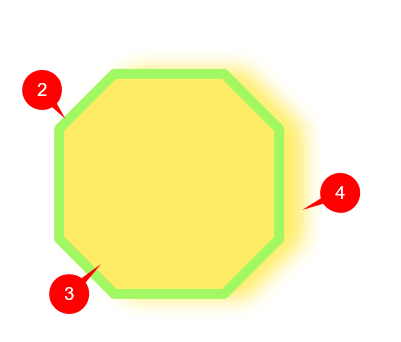
Generally, each shape has three basic properties: Line (2), Fill (3), and Shadow (4). So, to customize the look of shapes, just change any of these properties.
ActivePresenter 10 offers you four ways to customize shape styles:
- Customize the theme used for the current slide. Refer to How to Work with Themes for further information.
- Use the Format Painter tool
- Apply ready-made styles.
- Change each property of the shape manually.
Now, let’s learn how to use the third and fourth techniques in detail.
Use Ready-Made Styles
To style shapes using ready-made styles, take the following steps:
Step 1: Select one or more shapes.
Step 2: Do any of the following:
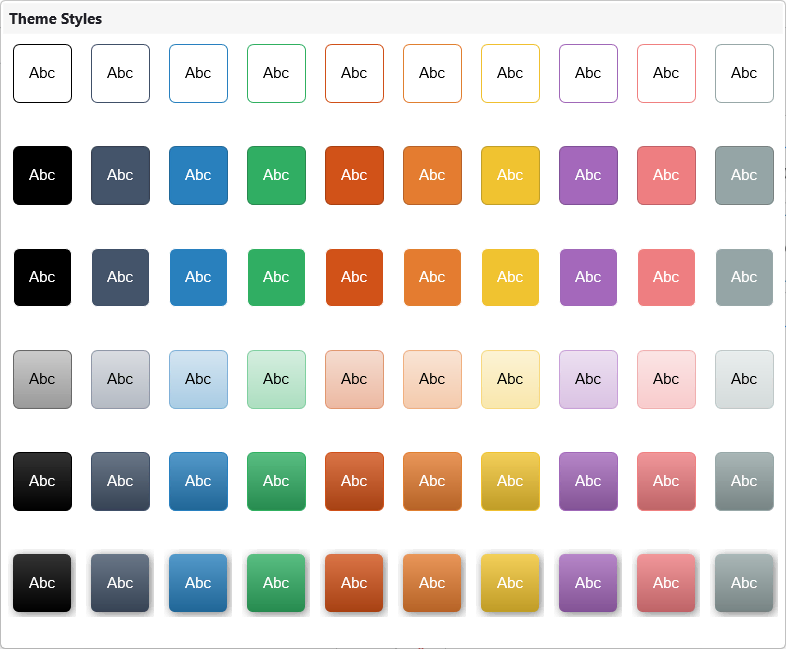
- Select any style in the Quick Styles box that displays available in the Format tab. To have more styles, click (5). Or click (6) to show the Theme Styles gallery.

- Select Quick Styles in the Home tab. This opens the Theme Styles gallery. Next, click any style you want.
Note:
- Styles in the Theme Styles gallery differ according to the theme used for the current slide.
- The Format tab is a contextual tab that only appears when you select a shape or variants of shape objects.
Use Style Tools or Properties Pane’s Tools
Now, you can change each shape style manually using any of the following ways:
- Use commands in the Home tab or Format tab.
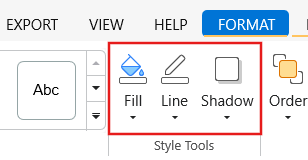
- Work with the Fill, Line, and Shadow sections in the Style & Effects tab of the Properties pane.
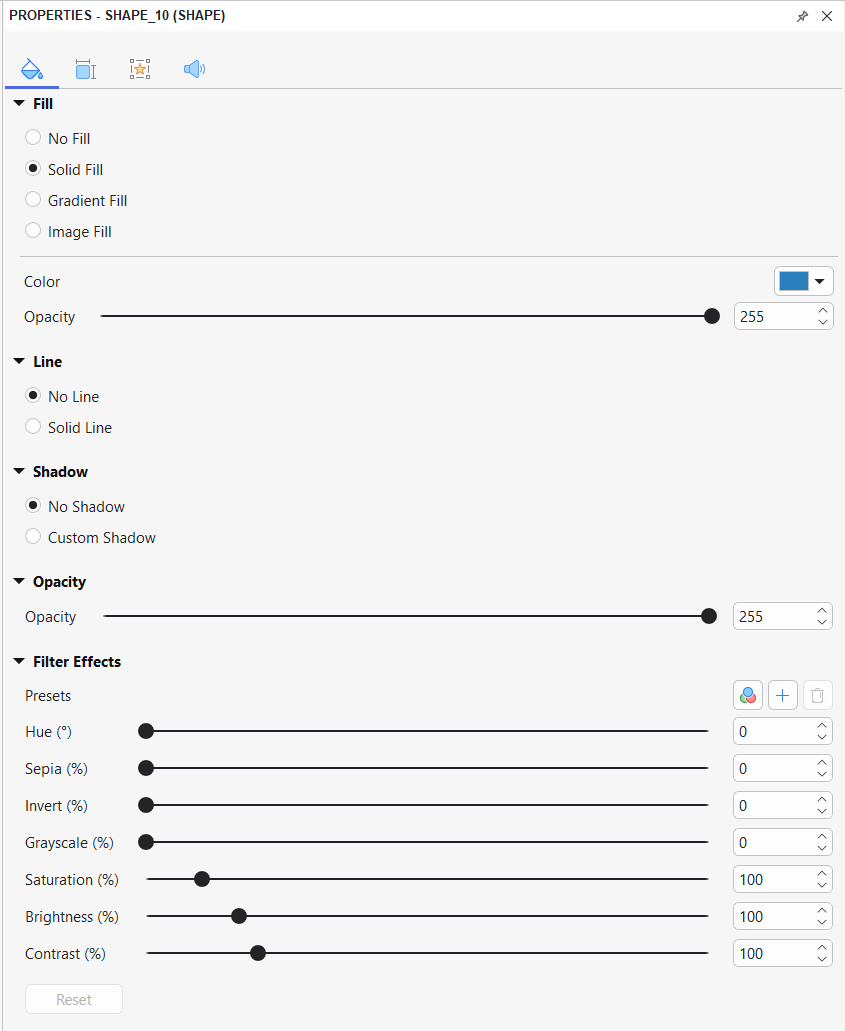
Both methods provide access to common shape-formatting controls, so you can use whichever is more convenient for your workflow.
Tip: When you’re done with customizing a shape, right-click it and select Set as Default Shape. That way, the current formatting will be set as default and used each time you insert a new shape in the current project. On the other hand, you can use Object Settings to save all the object properties and reuse them later. In addition, keeping the object in Object Template is a great way as well.
Use the Quick Edit Toolbar
[NEW IN ACTIVEPRESENTER 10.6]
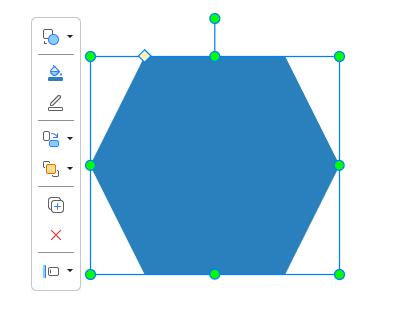
ActivePresenter 10.6 introduces the Quick Edit toolbar to give you faster access to common commands while working on the Canvas.
Select a shape, and the Quick Edit toolbar appears next to the selected object.
The commands shown on the toolbar depend on the selected object and can provide quick access to operations such as:
- formatting;
- fill and line settings;
- ordering;
- grouping;
- alignment;
- rotation;
- shape-related operations.
If the toolbar is hidden, go to:
View > Quick Edit
For multiple objects, hold SHIFT or CTRL while selecting them. Only commands that are valid for the complete selection remain available.
Change and Remove Shapes
Change a Shape to Another
ActivePresenter lets you switch from one ready-made shape to another while keeping its existing formatting.
Step 1: Select the shape.
Step 2: Click Change Shape in the Format tab > select any shape you want. Then, the new shape replaces the old one.

Remove Shapes
As you may know, shapes are annotation objects. Hence, to remove shapes, let’s apply the same technique as when you remove normal objects. That is, you just need to select the shapes and do any of the following:
- Press DELETE on the keyboard.
- Right-click it > Delete.
For more information, see Copy, Cut, Duplicate and Delete Objects.
Merge Shapes
[NEW IN ACTIVEPRESENTER 10.6]
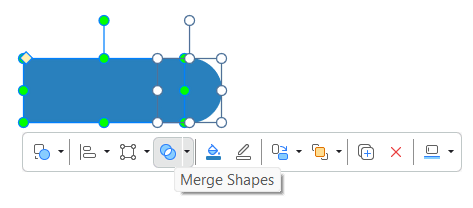
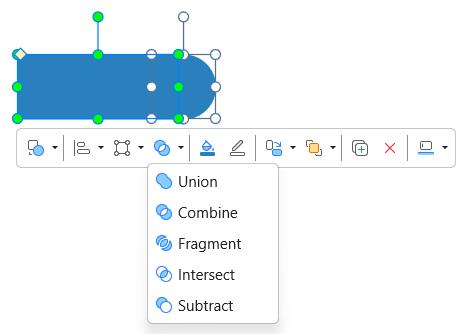
ActivePresenter 10.6 lets you combine compatible shapes to create new editable geometry.
Step 1: Select at least two compatible shapes on the same slide and in the same parent.
Hold SHIFT or CTRL while selecting multiple shapes.
Step 2: Use either of these methods:
- Format > Merge Shapes
- Quick Edit > Merge Shapes
ActivePresenter provides five operations:
- Union: Merge all selected shapes into one shape.
- Combine: Combine the shapes while removing overlapping areas. This can create holes.
- Fragment: Split the shapes at all overlapping boundaries and create separate pieces.
- Intersect: Keep only the areas shared by the selected shapes.
- Subtract: Remove the other selected shapes from the primary focused shape.
Note: The focused shape matters when using Subtract, so make sure the correct base shape is focused before applying the command.
Edit Compound Shapes
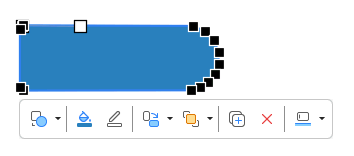
The result of Merge Shapes remains editable as a freeform or compound path.
Right-click the merged shape > Edit Points to modify its geometry.
If the shape contains multiple paths, right-click an individual path and use:
- Add Path
- Duplicate Path
- Delete Path
Then move the anchor points and control handles as needed.
Convert SVG Images to Editable Shapes
[NEW IN ACTIVEPRESENTER 10.6]
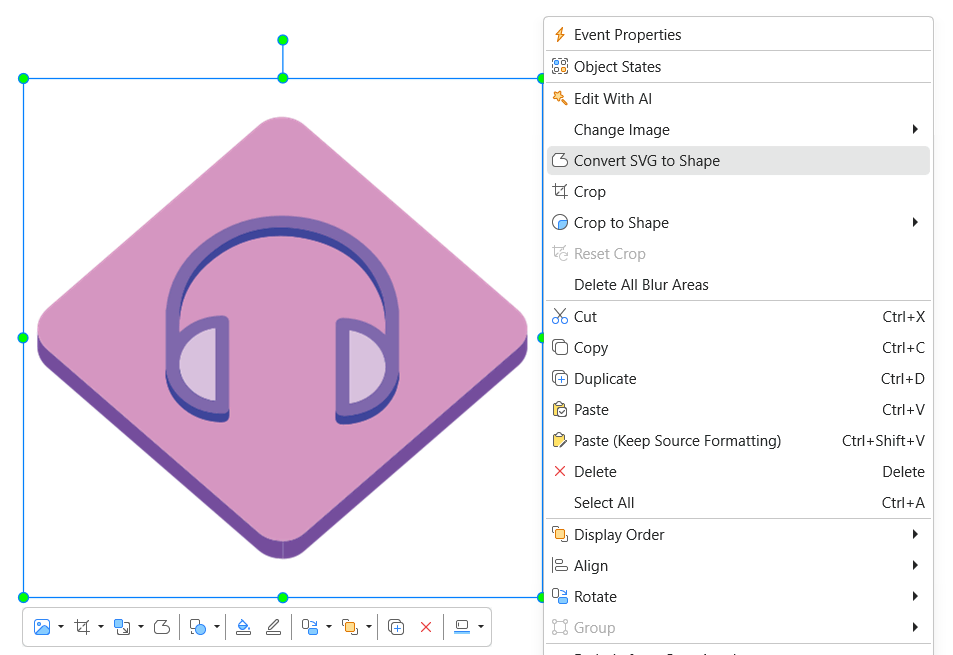
ActivePresenter 10.6 lets you convert supported SVG images into editable shapes.
Step 1: Select an SVG image.
Step 2: Choose Convert SVG to Shape using either:
- the Quick Edit toolbar; or
- the SVG image’s right-click menu.
ActivePresenter replaces the SVG image with an editable freeform shape or group while retaining supported fills, strokes, opacity, and transformations.
Note: Not every SVG feature has an editable-shape equivalent. Some SVG content may be simplified, or Convert SVG to Shape may be unavailable for unsupported content. Keep the original SVG if exact visual fidelity is important.
Save Shapes as Pictures
[NEW IN ACTIVEPRESENTER 10.6]
ActivePresenter 10.6 also lets you save the current appearance of an eligible shape or object as an image.
Right-click the shape on the Canvas or Timeline > Save as Picture…
Then choose one of these formats:
- PNG
- JPEG
- BMP
Use PNG when you need transparency. JPEG is suitable for photographic content but does not preserve transparency.
Note: The saved picture is a raster image. Text, paths, states, child objects, and other editable elements are flattened into the resulting image.
Draw Freeform Shapes
To explore line drawing tools, open the Home/Insert tab > Shape > Line and Arrows section.
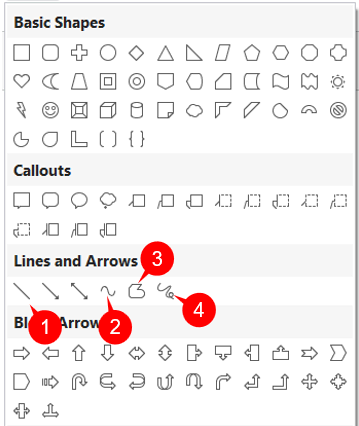
There are 4 types of line drawing: Line (1), Curve (2), Freeform Shape (3), and Freeform Scribble (4). They let you draw straight lines, curves or freestyle.
- Line (1): Draw simple straight, point-to-point lines.
- Curve (2): Draw curved lines or shapes.
- Freeform Shape (3): Draw lines/shapes that include both straight and freeform segments (dual capability).
- Freeform Scribble (4): Draw lines/shapes as if you were using a pencil on paper.
Draw Lines
To draw a line, follow these steps:
Step 1: Click anywhere on the Canvas to set the start point. Keep holding the left-click and move to another position where you want to set it as the end point.
Note: While moving the mouse, hold the SHIFT key on your keyboard to make a truly horizontal, vertical, or diagonal straight line. You can draw a 0, 30, 45, 60, 90, 120, 135, 150, and 180-degree line
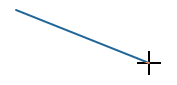
Step 2: Release the mouse button to finish.
Draw Curves
To draw a curve, do the following:
Step 1: Click anywhere on the Canvas to set the start point. Move the mouse to a different position, then click to add a new turn. The line is curved at the position of that click. If you move the mouse, the curve will change correspondingly. Each click adds a new turn to the curve.
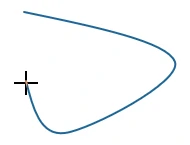
Step 2: A curve can be either open or closed. Do one of the following to finish your drawing:
- Double-click or right-click at the desired end position to create an open curve.
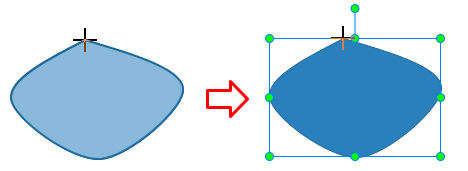
- Move the mouse toward the start point until it forms a filled shape, then click to create a closed curve.
Draw Freeform Shapes
This drawing tool has a dual capability that allows you to draw both straight and freeform lines. Perform the following steps:
Step 1: Click anywhere on the Canvas to set the start point. Now you can:
- Release the mouse button and move to another position, then click to draw a straight line.
- Hold down the mouse button and draw freeform lines like using a pencil.
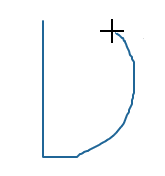
Step 2: A freeform shape can be either open or closed. Do one of the following to finish your drawing:
- Double-click at any position to create an open freeform.
- Move the mouse cursor to the start point and click to create a closed freeform shape.
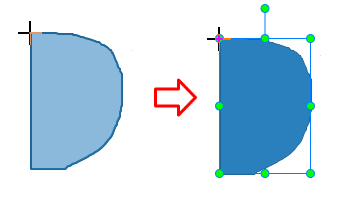
Draw Freeform Scribbles
Drawing using the Freeform Scribble tool shares some similarities with those of the Freeform Shape. This tool lets you draw freestyle as if you were drawing on paper with a pencil. To do that, you have to keep holding the mouse button while drawing. When you want to finish, just release the mouse button.
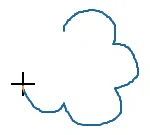
If the end point meets the start point, you create a closed scribble. Otherwise, you create an open one.
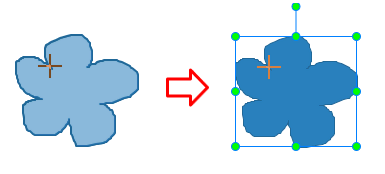
Edit Freeform Drawing
After finishing drawing, sometimes you may want to edit it. Right-click the drawing > Edit Points to open the edit mode. Then, you will see the shape is outlined by a red dashed line containing multiple black squares. They are anchor points that indicate the start and end of each line segment. When you select an anchor point, two blue handles appear with control points (white squares) at their ends.
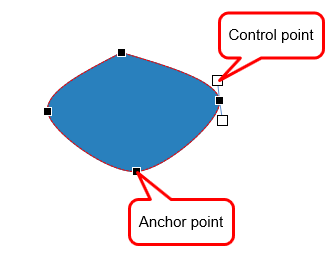
Click and drag an anchor point (1) to sharpen or smooth a corner or curve. Alternatively, drag a control point (2) to change the degree of the curve or line. A red dashed line appears indicating changes.
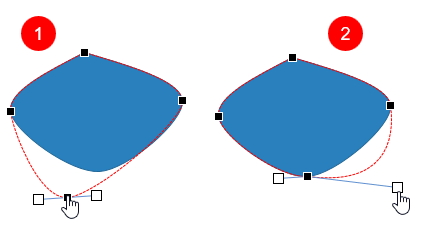
Once you finish editing, click any elsewhere outside to exit the edit mode. Alternatively, right-click a shape no matter its outline, anchor points, or control points, and select Exit Edit Point.
Add and Remove Anchor Points
Right-click a freeform shape > Edit Points to enter the edit mode:
- To add an anchor point, click anywhere on the red dashed outline and drag the new point to the desired position. Alternatively, right-click a segment between two existing anchor points > Add Point.
- To delete an anchor point, hold down CTRL and click it, or right-click it > Delete Point. The selected anchor point will disappear, and the shape will be changed accordingly.
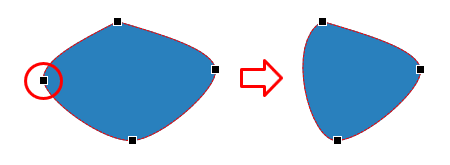
Open and Close Paths
In the edit mode:
- For an open shape, right-click an anchor point > Close Path. ActivePresenter adds a straight segment from the end point to the start point.
- For a closed shape, right-click an anchor point > Open Path to open the shape at the selected point.
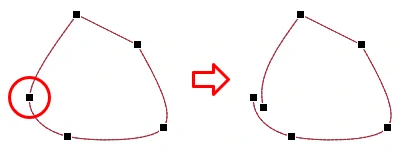
Otherwise, select Close Path to close an open shape. The app will add a new path to connect the start and end points together.
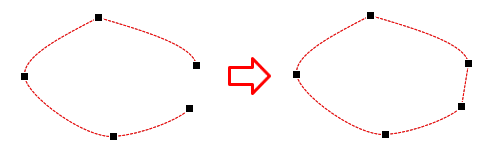
Change the Point Types
To change the type of an anchor point, right-click it and select an option:
- Smooth Point: The two handles point in exactly the opposite direction (180 degrees) from each other. A similar distance separates them from the anchor.
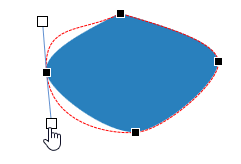
- Straight Point: The two handles point in exactly the opposite direction (180 degrees) from each other.
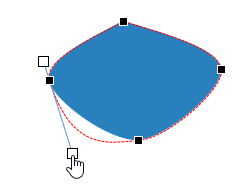
- Corner Point: The two handles go off in different directions. This is the default mode.
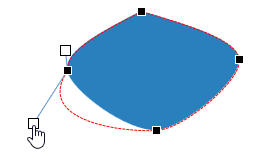
Make Straight Segments
ActivePresenter 10 allows you to straighten a curve segment easily. In the edit mode, right-click the curve segment > Straight Segment.
Final Thoughts
Shapes in ActivePresenter go beyond basic visual decoration. Along with familiar tools for inserting, styling, drawing, and editing shapes, ActivePresenter 10.6 adds Quick Edit, Merge Shapes, editable compound paths, SVG-to-shape conversion, and Save as Picture to make visual design more flexible.
These tools help you create, refine, and reuse custom graphics directly in the same environment where you build eLearning courses, interactive content, screen recordings, and videos.
Ready to explore the latest visual-design tools in ActivePresenter?
Related articles: