
If you’ve ever spent three hours troubleshooting a broken SCORM package the night before a course launch, you already know that your choice of authoring tool isn’t just a preference, it’s a liability or an asset. In 2026, the debate between desktop and cloud-based SCORM authoring tools is more relevant than ever, with both camps offering genuinely strong arguments. This guide cuts through the noise and gives you a practical, experience-backed framework for making the right call.
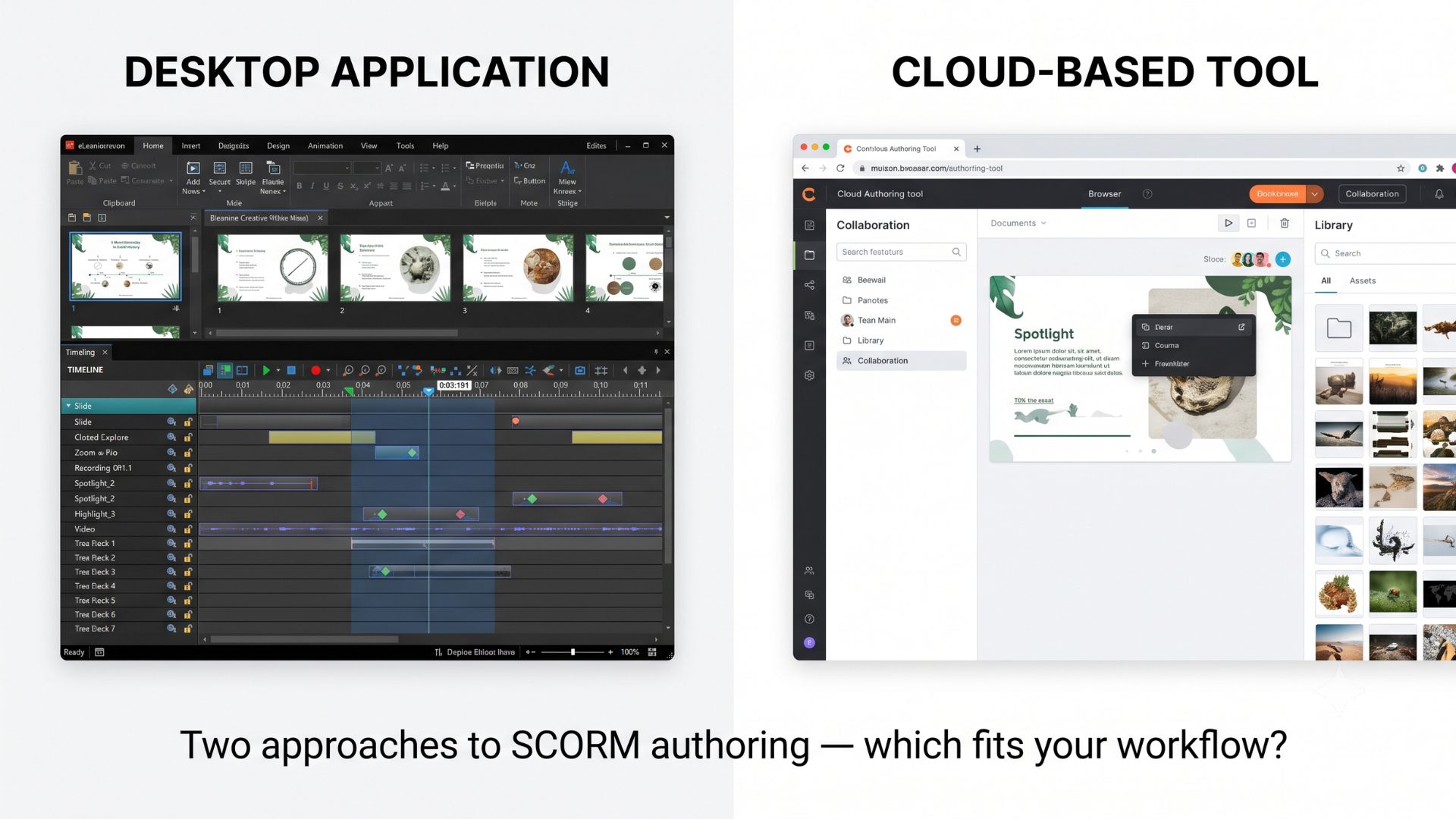
What Are SCORM Authoring Tools (And Why Your Choice of Platform Matters)
Before comparing platforms, it’s worth making sure we’re talking about the same thing. SCORM authoring tools are software applications — desktop or cloud, that let you build interactive eLearning courses and export them in SCORM (Sharable Content Object Reference Model) or xAPI format for deployment on a Learning Management System (LMS).
A Quick Refresher on SCORM and xAPI
SCORM (most commonly SCORM 1.2 and SCORM 2004) is the dominant standard for packaging and tracking eLearning content. When your LMS knows a learner completed Module 3 and scored 87% on the quiz, that’s SCORM doing its job.
xAPI (also called Tin Can) is the modern evolution — more flexible, capable of tracking learning that happens outside the LMS (mobile apps, simulations, even physical training). If your organization is moving toward learning ecosystems rather than just LMS-based courses, xAPI support in your authoring tool matters.
How the Platform Type Shapes Your Entire Workflow
Here’s something that often gets overlooked in these comparisons: the platform type — desktop vs. cloud — doesn’t just affect where you build your course. It affects your file management, collaboration model, data security posture, offline capability, and even the complexity of interactivity you can realistically achieve. That’s why this decision deserves more than a quick pros/cons list.
Desktop SCORM Authoring Tools — The Case for Local Power
Desktop authoring tools are installed applications that run locally on your Windows or Mac machine. Think of them as the professional-grade workstations of the eLearning world.
Core Strengths of Desktop Tools
1. Processing Power Without Limits
When you’re building a 45-minute software simulation with branching scenarios, dozens of variables, and embedded video, you need raw computational power. Desktop tools leverage your machine’s full CPU and GPU — no server lag, no browser memory caps.
2. Full Offline Capability
Working on a corporate training project under NDA in a secure facility with no internet access? Desktop tools don’t care. Your entire workflow: recording, editing, authoring, previewing, works completely offline.
3. Superior Interactivity Engine
In my experience working across both categories for over a decade, desktop tools consistently offer more granular control over event-action logic, conditional branching, and variable management. This is where the gap between “a quiz” and “an adaptive learning experience” is built.
4. Non-Destructive Video Editing
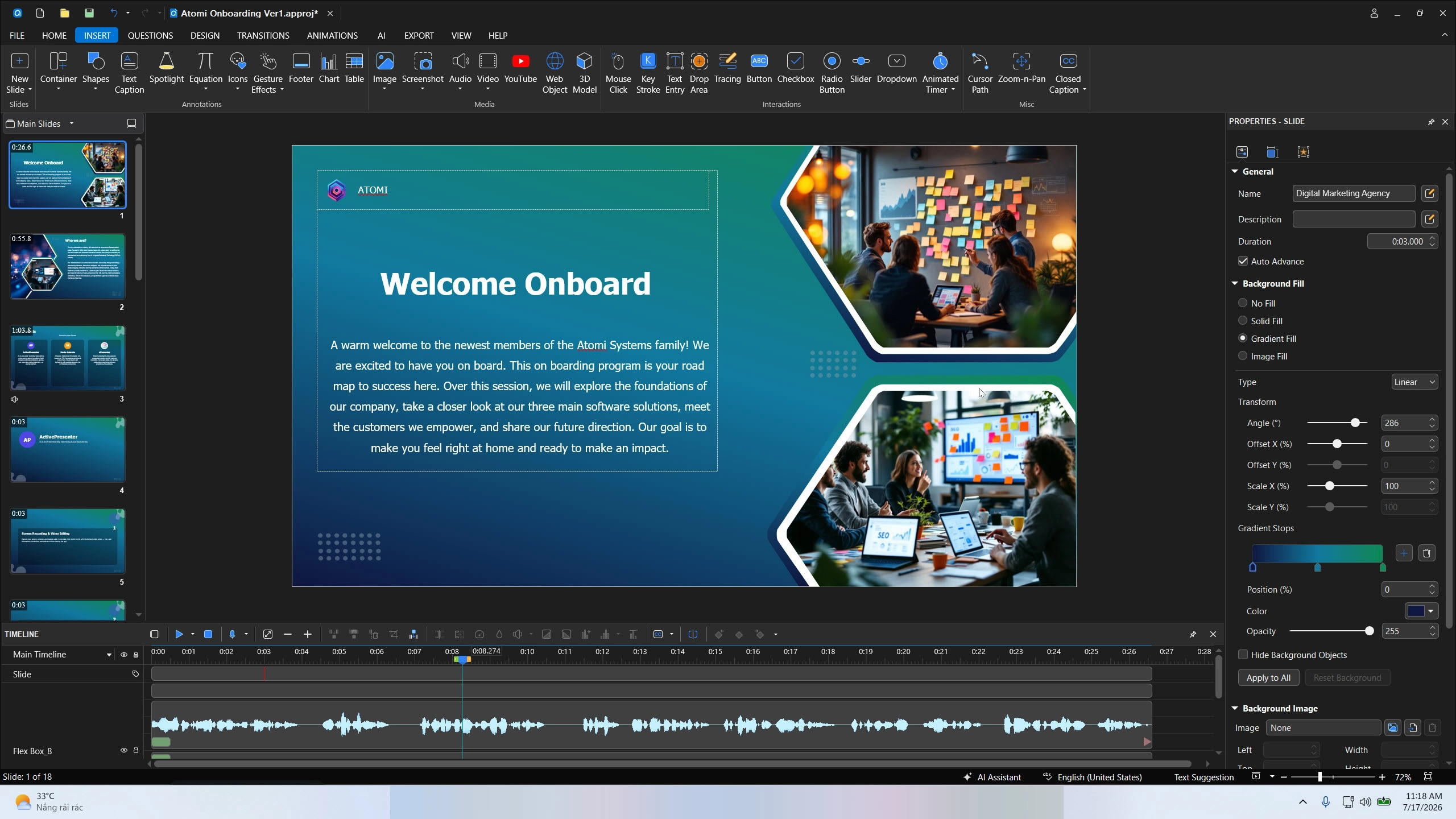
Desktop tools like ActivePresenter include a timeline-based, non-destructive video editor. You can trim, annotate, add captions, and apply zoom effects to screen recordings without permanently altering your source file — a workflow that cloud tools rarely replicate at the same fidelity.
5. Data Privacy and Security
Your project files never leave your machine unless you choose to export them. For industries with strict data compliance requirements (healthcare, finance, government), this isn’t a nice-to-have — it’s a requirement.
Where Desktop Tools Fall Short
- Collaboration friction: Sharing work-in-progress files between team members typically requires manual file transfers or shared drives. Real-time co-editing is not a native feature.
- Manual updates: You’re responsible for keeping the software up to date, and major version upgrades sometimes require workflow adjustments.
- Hardware dependency: If your machine is underpowered, performance suffers. Large projects with heavy media assets demand solid specs.
Who Should Use Desktop SCORM Authoring Tools?
- Instructional designers building complex, simulation-heavy courses
- Organizations with strict data privacy or compliance requirements
- Solo developers or small teams with established file-sharing workflows
- Creators who need advanced video editing alongside SCORM authoring
Cloud-Based SCORM Authoring Tools — The Case for Flexibility
Cloud-based tools run entirely in your browser. No installation, no version management — just a URL and a login. Authoring tools like uPresenter, Articulate 360 can hel
Core Strengths of Cloud Tools
1. Instant Access from Any Device
Open your laptop, your tablet, even a borrowed machine at a client site — your course project is exactly where you left it. For distributed teams working across time zones, this is a genuine operational advantage.
2. Real-Time Collaboration
Multiple stakeholders — an instructional designer, a subject matter expert, a project manager — can review and comment on content simultaneously. Feedback cycles that used to take days can happen in hours.
3. Zero Installation Overhead
IT departments love cloud tools for one reason: there’s nothing to deploy. For organizations onboarding new team members frequently, this reduces friction significantly.
4. Automatic Feature Updates
The provider handles all updates. You log in on Monday and there are new features waiting for you — no manual patches, no compatibility testing on your end.
5. Template Libraries
Most cloud platforms come with extensive pre-built template libraries that let less experienced designers produce visually polished output quickly.
Where Cloud Tools Fall Short
1. Internet Dependency
No connection, no work. In regions with unreliable connectivity, or in secure environments where internet access is restricted, cloud tools become unusable.
2. Interactivity Ceiling
This is the most significant technical limitation. Cloud tools are constrained by what a browser can render and process. Complex branching logic, software simulations, and advanced variable-based interactions are either unavailable or significantly simplified compared to desktop equivalents.
3. Recurring Subscription Costs
Cloud tools are almost universally subscription-based. Over a 3–5 year horizon, the total cost of ownership often exceeds a perpetual desktop license, especially for small teams.
4. Data Sovereignty Concerns
Your course content, including proprietary training materials and potentially sensitive employee data, lives on the vendor’s servers. Understanding where that data is stored and who can access it requires careful due diligence.
Who Should Use Cloud-Based SCORM Authoring Tools?
- Distributed teams that prioritize collaboration over complexity
- Educators or trainers who need to produce courses quickly using templates
- Organizations without dedicated eLearning developers
- Projects with straightforward content structures (slides, basic quizzes, short videos)
Head-to-Head Comparison: Desktop vs. Cloud SCORM Authoring Tools
| Criteria | Desktop Tools | Cloud-Based Tools |
| SCORM/xAPI Export | ✅ Full support | ✅ Full support (most platforms) |
| Offline Capability | ✅ Full | ❌ None |
| Interactivity Complexity | ✅ Advanced (variables, branching, simulations) | ⚠️ Basic to intermediate |
| Video Editing | ✅ Non-destructive timeline editor | ⚠️ Limited (trim/cut only) |
| Real-Time Collaboration | ❌ Not native | ✅ Core feature |
| Data Privacy | ✅ Files stay local | ⚠️ Vendor-dependent |
| Cost Model | 💰 One-time or annual license | 💰 Monthly/annual subscription |
| Long-Term Cost | Lower (perpetual license) | Higher (cumulative subscription) |
| Setup Time | ⚠️ Installation required | ✅ Instant (browser-based) |
| Template Library | ⚠️ Limited built-in | ✅ Extensive |
| Screen Recording | ✅ Built-in (desktop tools) | ❌ Usually not included |
| Software Simulations | ✅ Full support | ❌ Rarely supported |
| AI Integration | ✅ Growing (e.g., MCP Connect) | ✅ Growing |
| LMS Compatibility | ✅ Standard SCORM/xAPI | ✅ Standard SCORM/xAPI |
3 Real-World Scenarios to Help You Decide
Scenario 1 — Corporate Compliance Training in Banking/Finance
A compliance team at a regional bank needs to build annual AML (Anti-Money Laundering) training for 500 employees. The content includes regulatory scenarios, branching decision trees, and must track completion with audit-grade SCORM reporting.
Best fit: Desktop tool.
The sensitivity of the content rules out cloud storage. The branching complexity and need for reliable SCORM tracking point firmly toward a desktop tool with a robust interactivity engine. Using a tool like ActivePresenter, the team can build scenario-based simulations with conditional logic, record software walkthroughs of internal compliance systems, and export a clean SCORM 2004 package for their LMS — all without a single byte of content leaving their internal network.
Scenario 2 — Remote Instructional Design Team
A SaaS company has an L&D team spread across three continents. They’re building product onboarding courses that need frequent updates as the product evolves. Content is primarily slide-based with short knowledge checks.
Best fit: Cloud tool.
The collaboration requirement is the deciding factor here. When your SME in Singapore needs to review and comment on content your designer in Berlin just updated, a cloud tool’s real-time collaboration removes what would otherwise be a significant coordination overhead. The content complexity is manageable within cloud tool limitations.
Scenario 3 — IT Software Simulation Training
An IT training provider needs to build a library of software simulations teaching employees how to use a new ERP system. Each module requires click-through demonstrations, guided practice modes, and test modes with scoring.
Best fit: Desktop tool — specifically one with screen recording and simulation capabilities.
This is a use case where cloud tools simply cannot compete. Software simulation — capturing a live application workflow, then converting it into an interactive lesson with Try Mode, Test Mode, and View Mode — requires desktop-level screen capture and a simulation engine. This is a core capability of tools like ActivePresenter, which records software interactions and automatically generates clickable hotspots and feedback layers.
💡 Pro Tip: When building software simulations in ActivePresenter, use the “Record Software Simulation” feature rather than standard screen recording. It captures mouse clicks and keyboard inputs as discrete, editable interaction objects — meaning you can later adjust timing, add hints, or change expected actions without re-recording from scratch. This alone saves hours on complex ERP or CRM training projects.
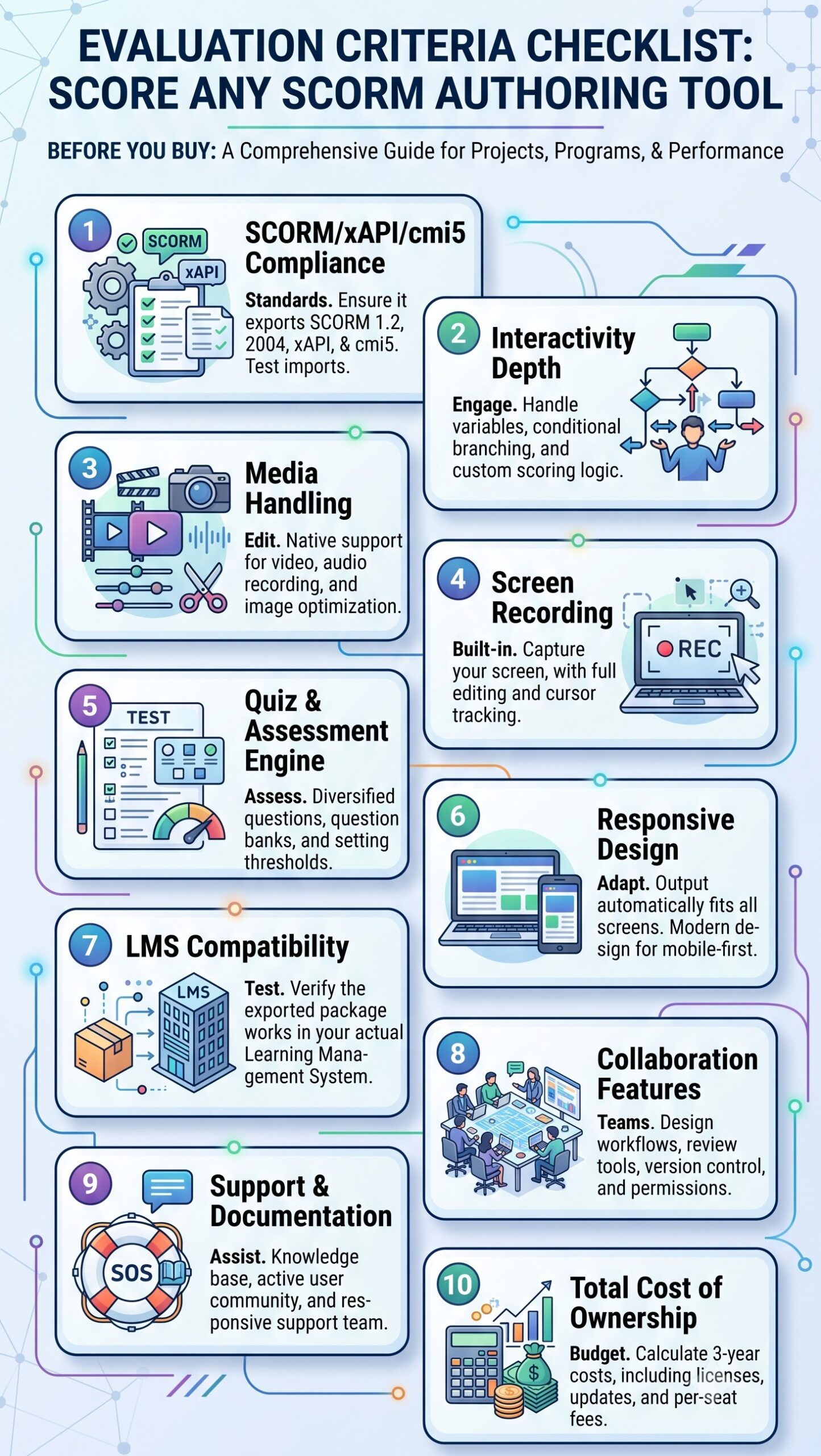
Evaluation Criteria: How to Score Any SCORM Authoring Tool
Before committing to any tool — desktop or cloud — run it through this checklist:
| Criteria | What to Check |
| SCORM/xAPI Compliance | Does it export SCORM 1.2, SCORM 2004, and xAPI? Test with SCORM Cloud before buying. |
| Interactivity Depth | Can it handle variables, conditional branching, and custom scoring logic? |
| Media Handling | Does it support video editing, audio narration, and image optimization natively? |
| Screen Recording | Is it built in, or do you need a separate tool? |
| Quiz & Assessment Engine | What question types are available? Can you randomize questions and set pass/fail thresholds? |
| Responsive Design | Does output adapt to mobile, tablet, and desktop without manual adjustment? |
| LMS Compatibility | Test the exported package in your actual LMS, not just in the vendor’s demo environment. |
| Collaboration Features | Review workflows, role-based permissions, version control? |
| Support & Documentation | Is there a knowledge base, active user community, and responsive support team? |
| Total Cost of Ownership | Calculate 3-year cost including licenses, upgrades, and any per-seat fees. |
| AI Capabilities | Does the tool integrate AI for content generation, translation, or workflow automation? |
Pro Tips From 10+ Years of eLearning Content Production
Over a decade of building eLearning content across industries has taught me a few things that rarely appear in vendor documentation:
💡 Pro Tip #1 — Always validate SCORM packages externally.
Don’t trust the authoring tool’s built-in preview as your final SCORM test. Upload your package to SCORM Cloud and run a full completion test before handing it to your LMS admin. I’ve seen packages that preview perfectly in-tool but fail silently in production LMS environments. Catching this early saves serious headaches.
💡 Pro Tip #2 — Maximize your desktop tool license.
If you’re using a desktop tool with a per-machine license model, check whether AI credits or cloud features are shared across all activated machines under the same license key. In tools like ActivePresenter, AI credits are pooled across all machines activated under one license — meaning a team of three can collectively use the full credit allocation rather than splitting it, which significantly extends your AI-assisted authoring capacity.
💡 Pro Tip #3 — Don’t default to cloud for “collaboration.”
The real collaboration bottleneck in most eLearning projects isn’t simultaneous editing — it’s review cycles with SMEs. A shared Google Doc for script review + a desktop tool for production often outperforms a cloud authoring tool end-to-end, with better output quality and no subscription overhead.
💡 Pro Tip #4 — Use non-destructive editing as your safety net.
If your desktop tool supports non-destructive editing (where the original recording is preserved and all edits are applied as a layer), use it religiously. The number of times a client has come back three months later asking to update a single screen in a 30-minute simulation — and you can just swap the asset without re-recording — is worth every extra gigabyte of project file size.
A Hybrid Approach Worth Considering: ActivePresenter + uPresenter
One of the more interesting developments in the SCORM authoring space is the emergence of hybrid workflows that combine desktop authoring power with cloud delivery convenience.
ActivePresenter is a desktop SCORM authoring tool that covers the full production pipeline: screen recording, non-destructive video editing, interactive course design (with variables, branching, and simulation modes), and export to SCORM 1.2, SCORM 2004, xAPI, and HTML5. It’s also added AI-powered features and MCP Connect for teams exploring AI agent integration in their content workflows.
What makes it particularly relevant to this discussion is its Publish to uPresenter feature. Rather than requiring a full LMS setup, you can publish courses directly from ActivePresenter to uPresenter — a lightweight, cloud-based LMS built by the same team. This gives you desktop-quality authoring with cloud-based distribution and learner tracking, without forcing a choice between the two paradigms.
For teams that want professional-grade SCORM content but don’t want to manage a heavyweight LMS, this combination is worth a serious look.
👉 Try ActivePresenter free — the full feature set is available in the free version, with no time limit on evaluation.

Final Verdict: Which Should You Choose?
There’s no universal answer — but there is a clear decision framework:
Choose a desktop SCORM authoring tool if:
- Your content involves software simulations, complex branching, or advanced interactivity
- Data privacy, compliance, or offline work are requirements
- You want the best video editing + authoring combination in a single tool
- You’re optimizing for long-term cost efficiency
Choose a cloud-based SCORM authoring tool if:
- Your team is distributed and real-time collaboration is the top priority
- Your content is primarily slide-based with standard quiz interactions
- You need zero installation overhead and fast onboarding for new team members
- You’re producing high volumes of template-driven content on a tight timeline
Consider a hybrid approach if:
- You want desktop authoring quality with cloud delivery convenience
- Your team is small but your content requirements are complex
- You want to avoid managing a full LMS while still tracking learner progress
The tools you choose shape the courses you can build. Whether you’re leaning desktop, cloud, or somewhere in between, the most important step is to test before you commit. Most reputable SCORM authoring tools — including ActivePresenter — offer free versions or trials with access to their full feature set.
Download ActivePresenter for free and build your first SCORM-compliant course today. If you run into questions along the way, the Atomi Systems support community is an active, responsive resource where both the team and experienced users share practical solutions.
